Capture quickly
- Shortcuts for region and scrolling screenshots.
- Drop, choose or paste images; choose to save text or images.
- Record file paths, with optional file backups.
A LOCAL-FIRST CAPTURE, ANNOTATION & OCR WORKSPACE
Annotate screenshots for AI feedback, extract text, work with PDFs and organize references. Send images and notes between Windows and Mac over your LAN.
Workflow demo, not the actual interface.
 SanFrame
Keep the context. Find the key idea.
Turn scattered material into useful references.
Image text extracted
01 / EVERYDAY TOOLS
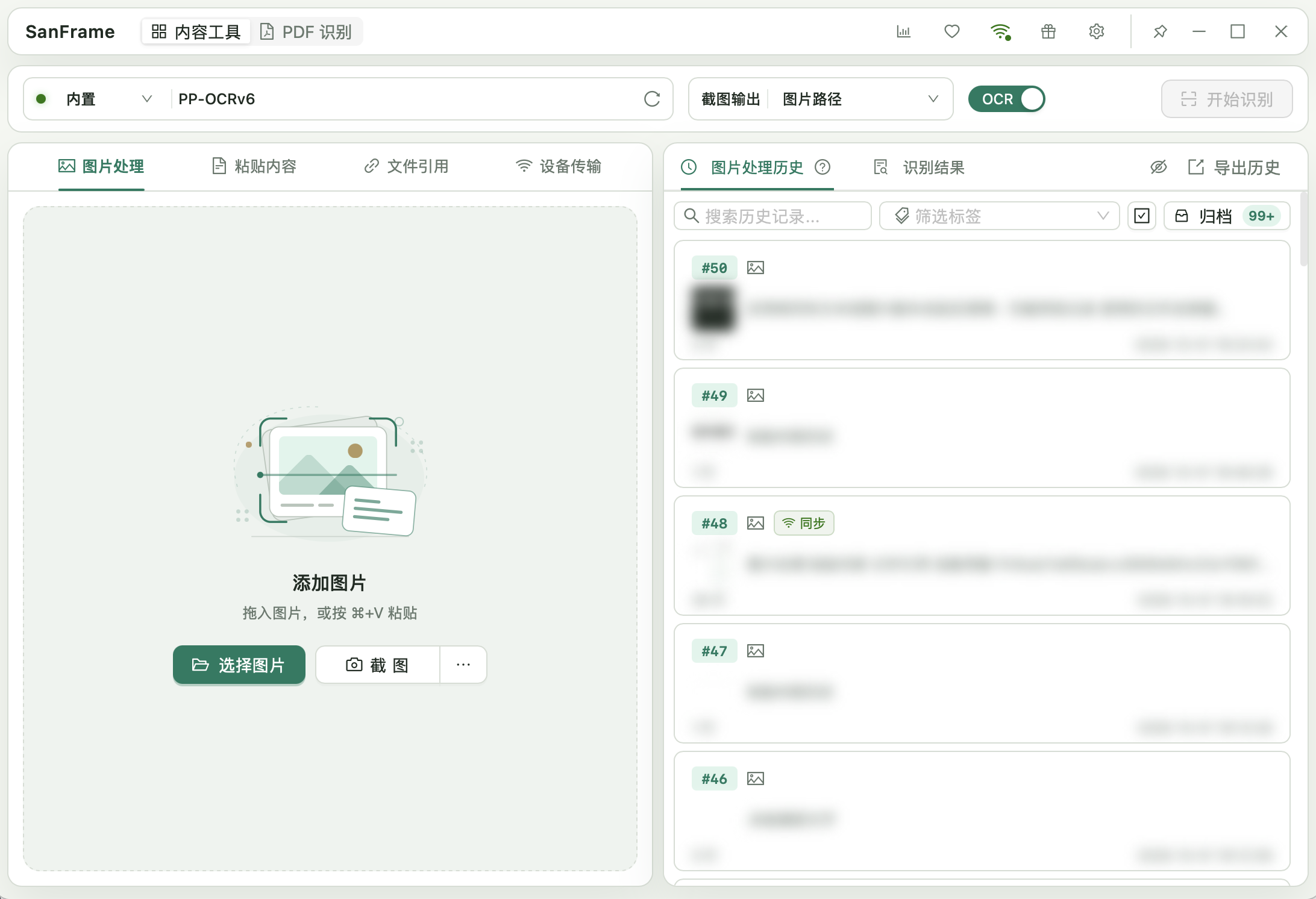
ACTUAL APP · CHINESE UI
Work with images on the left. Search, filter and archive history on the right.
History content is blurred in this screenshot.
ANNOTATE & SHARE FEEDBACK
Mark the issue and describe the result you want. Bring the image and notes to the computer where you write code.
Circle the issue, add a letter label and describe the change.
Save your annotations, then send image history to a connected LAN device.
Copy the annotated image from the Edited preview and add your instructions.
Transfer your code or build, then check the appearance and behavior.
Copy the image directly from the annotation editor.
Choose Copy edited image in the Edited preview.
Paste into an AI coding tool that accepts images. Windows → Mac works too; your development tools handle code changes and builds.
02 / BETWEEN DEVICES
Between Windows and Mac computers on the same LAN, sync new content or send the references you need.
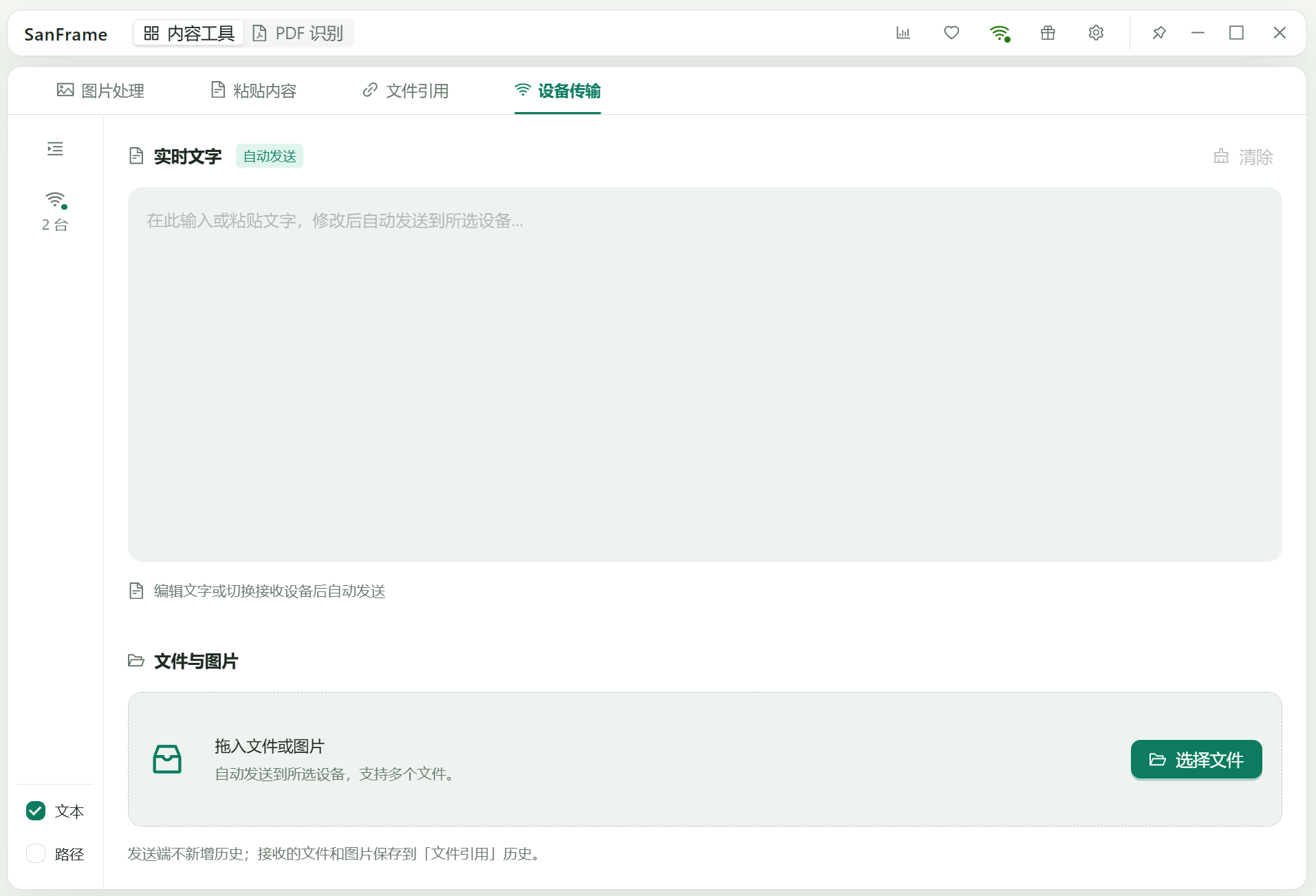
ACTUAL APP · CHINESE UI
Choose the receiving devices, then type text or drop files to send them.
Discover devices on the same LAN, then confirm the invitation and pairing. Joining adopts that group’s settings.
Sync new references and supported updates within the group scope. Any connected device can change this scope for the whole group. History and offline content are not sent automatically.
Send text, files or history, regardless of automatic sync settings. Queue, pause and resume files within the current connection.
No account. Encrypted LAN transfer. No cloud relay.
03 / RECOGNITION
Bundled PP-OCRv6 Small extracts plain text offline, without an internet connection or a model service to configure.
Use a compatible image-input model via Ollama or llama.cpp for text, tables and formulas, with Markdown preview and export. Services and model files are set up separately.
Built-in OCR runs locally. Other OCR services receive images and prompts at your configured address, on this computer or a remote one.
04 / GOOD TO KNOW
No. Open Content tools → Image tools or PDF OCR to extract plain text with built-in offline OCR, without a separate model service. You can optionally configure a compatible image-input model for capabilities such as table and formula recognition.
The SanFrame desktop app requires no account and has no telemetry. Built-in OCR runs locally; other models receive images and prompts at the configured address, with processing and retention determined by that service and its settings. Discovery broadcasts device names, identifiers and connection information on the LAN. Once an authorized connection is established, automatic and manual transfers are encrypted between connected devices and relayed by the host; file transfers may use temporary caches. Synced records do not attach source directory paths or OCR credentials.
All computers need compatible versions of SanFrame on the same LAN. Invite through the device list and check the pairing code; each device confirms separately before joining. Joining adopts that group’s settings. Changes to members or scope before joining is complete require confirmation again. The host relays content and must keep the app running alongside the other members. When the host quits, the current group disconnects.
From 4.19.0, devices successfully paired through the device list can be remembered. Connect on startup and reconnect after an unexpected disconnection are off by default. Both sides must enable the option appropriate to their situation, and the original host restores the connection. Manually stopping or leaving pauses automatic connections for that app session. Invitation links create only the current connection and do not remember devices. From 4.20.0, you can unpair one device locally without ending an existing connection or deleting received content.
No. The sync scope is shared by the group; changes made by any connected device apply to the whole group. It shares only new content within that scope after connecting, plus supported updates. Recognition information synced according to group settings can include existing results, previous versions, prompts, engines and models. Records from before the connection and content created offline or while sync was disabled are not sent automatically. You can manually send one or more records from history, favorites or archives; received copies do not take part in later automatic sync.
No. With file sync enabled, individual files newly added to File references during the connection are sent as copies. Favorite status can be synced afterwards, but editing the original file in another app does not update other computers. Send the file again when you need to share a newer copy. Each file can be up to 8 GiB; folders are not sent directly. Paused files can resume within the current connection, but an expired connection requires a new transfer.
Received text replaces the entire text in Device transfer, including when it is cleared. If several devices send text, updates follow the order accepted by the host; their edits are not merged. Editing text or actively changing the recipient selection sends the current text to the selected devices. Receiving text alone does not send it back.
Files and images: Find them in File references history on this computer. Text is not automatically extracted from images. Text: By default, received text only appears in Device transfer and is not saved. To keep it, turn on Save received text to Pasted content history. Text received after that will be saved in Pasted content history. While saving is on, new text from the same device replaces its previous entry for the current connection. If the sender clears the text, the saved text is cleared too. Entries you delete will not reappear during that connection. Turning saving off keeps existing entries. Turning it back on saves only text received from then on. This switch only controls saving on this computer; it does not change what the group syncs.
Image tools, Pasted content and File references can each archive history automatically by age or record count. Archived content remains available; reaching a limit does not automatically delete it. Received content follows the receiving computer’s local settings too. Archiving or deleting whole records affects only this computer and does not recall independent copies already sent.
Set up a compatible Ollama or llama.cpp service and an image-input model on this computer or another reachable computer. Then configure the service address in SanFrame, select a model and load it. Once configured, local services can be started or stopped in the app; remote services are managed on their own computers. Compatibility and recognition quality depend on the model, prompts and service version.
Choose your operating system. The macOS installer supports both Apple Silicon and Intel. Check the file name for its version. Automatic connections require 4.19.0 or later; unpairing individual devices requires 4.20.0 or later.
Windows · x64
SanFrame-v4.20.4-Windows-x64-setup.exe
Use this to check that your download matches the published file.
0a3dcb9a08d189b021c3367567612e8ef53fe1d3ec9e4dc79e90441e4ad20f3bmacOS · 13.4+
SanFrame-v4.20.4-macOS-Universal.dmg
Use this to check that your download matches the published file.
532fcd171eb8252f2cbd55c9e7f436d4e44657a3cf8889b1afccb3a102fe895e